
Deploy from GitHub
Connect a GitHub repository to a service and Ployz builds and deploys it each time you push to its Git branch. How builds work covers what happens in between.
Add a service from a repository
Section titled “Add a service from a repository”- Go to Projects, click New project and choose GitHub repository. (To add it to a project you already have, click Create on that project's canvas instead.) The first time, click Connect GitHub, pick the account or organization, choose the repositories Ployz may use, and install the Ployz GitHub App.
- Search for the repository, or paste its URL, and pick it.
- Before you deploy, set what your app needs to start:
- To make it public, open Settings → Networking and click
Generate Domain. Enter its port in Port
if your app doesn't listen on
PORT. - If it needs variables or a database to start, add them now.
- For one app of a monorepo, set its root directory under Source.
- To make it public, open Settings → Networking and click
Generate Domain. Enter its port in Port
if your app doesn't listen on
- Click Deploy in the bottom bar.
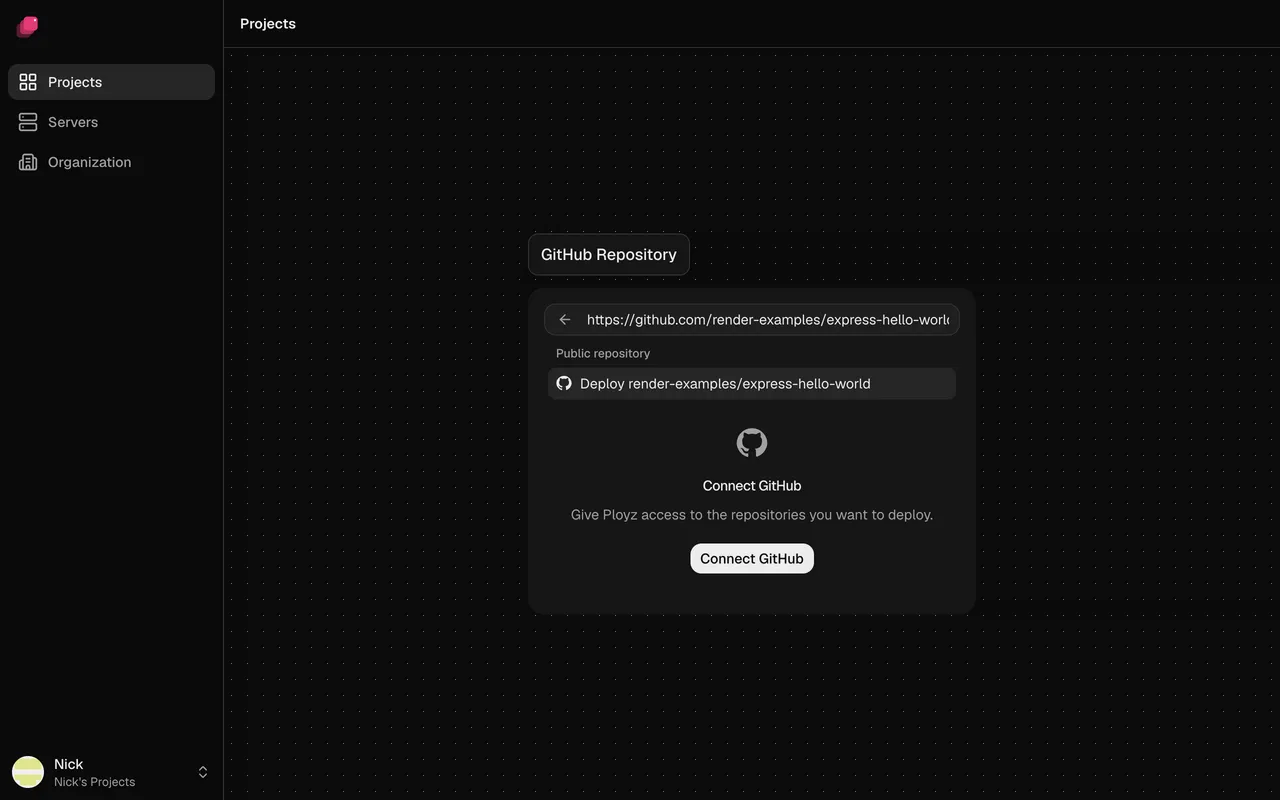
The service is named after the repository and follows its default Git branch. The GitHub App reads your code, pull requests and checks, and can't push code. To give Ployz more repositories later, choose Set up GitHub above the repository list.
Deploy a public repository without the app
Section titled “Deploy a public repository without the app”In the repository list, type owner/repo or paste the repository's URL, choose Deploy
owner/repo, then deploy.
Without the app, Ployz never hears about pushes: no deploy on push, no Wait for CI, and no builds on GitHub Actions. Install the app on the repository to get them. Until then, shipping a new commit is CLI-only for now, because the dashboard's Deploy needs a staged change:
# Builds and deploys the newest commit on the service's Git branch
ployz deploy
Choose the Git branch
Section titled “Choose the Git branch”- Open the service and go to Settings → Source.
- Next to Branch, click the pencil and pick a Git branch. For a public repository, type its name.
- Deploy the change.
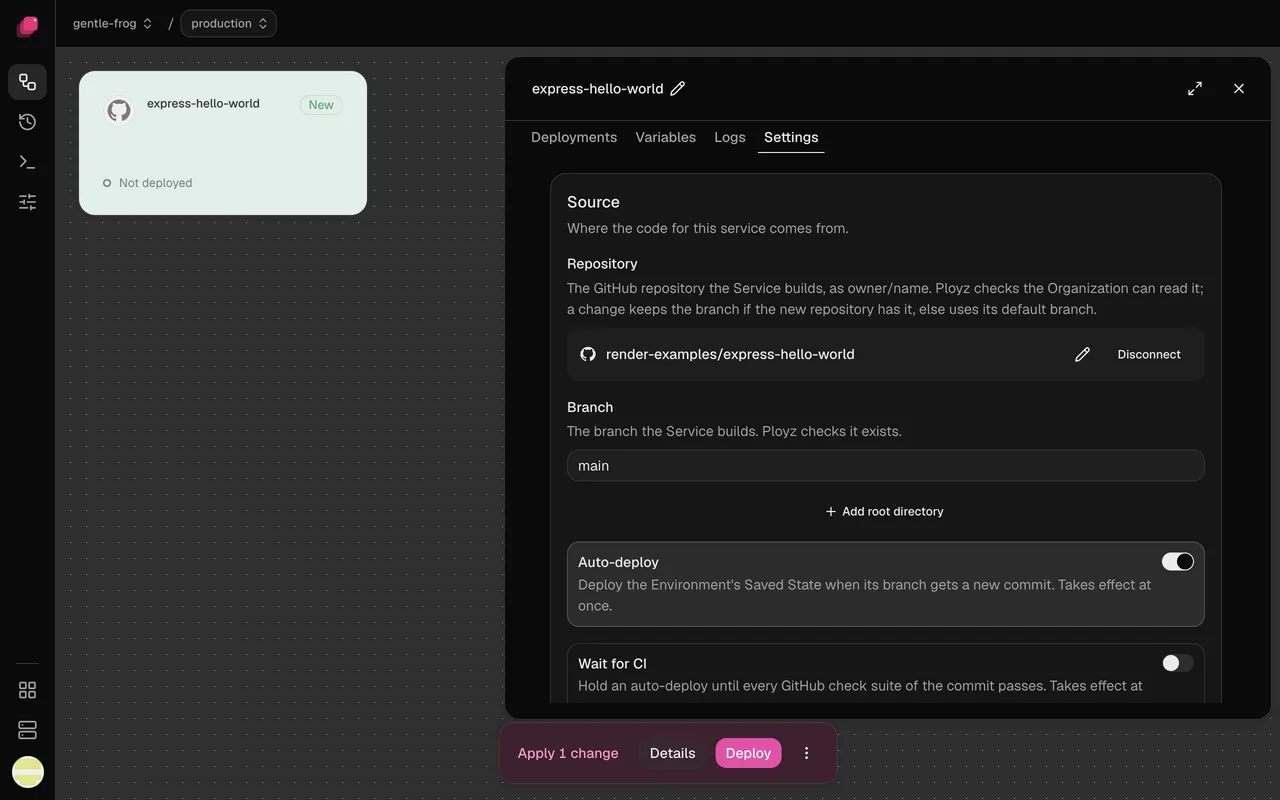
Each environment has its own settings, so production can follow main while staging follows
develop. See Environments and branches.
Deploy on push
Section titled “Deploy on push”Auto-deploy is on for every new service. Each push to the service's Git branch deploys it, in every environment that follows that Git branch. Turn Auto-deploy off under Settings → Source to deploy only when you choose. It applies at once, with no deploy.
A push ships the new commit with the settings you last deployed or published. Staged changes you haven't published stay behind, and services the push doesn't touch keep running as they are.
Wait for CI
Section titled “Wait for CI”Turn on Wait for CI under Settings → Source to hold a push's deploy until its GitHub checks pass, from GitHub Actions or any other app that reports checks. It applies at once.
- If a check fails, the commit doesn't deploy. Re-run it on GitHub and the commit deploys once it passes, or push a fix.
- A newer push replaces a commit that's still waiting.
- If no checks run for a commit, it waits until your next push. CI that reports commit statuses instead of checks counts as no checks.
Deploy only when certain files change
Section titled “Deploy only when certain files change”Watch paths limit auto-deploys to pushes that change files you list. Under Settings →
Source → Watch paths, type a pattern and click Add. Patterns work like .gitignore and
start at the root of the repository, whatever the service's root directory is. They apply at
once.
| Pattern | Matches |
|---|---|
apps/web/** | everything under apps/web |
*.md | Markdown files in any folder |
/README.md | only the README at the root |
!**/*.md | leaves out Markdown files an earlier pattern matched |
Without watch paths, any change deploys. A force push, the first push Ployz sees on a Git branch, or a push that changes 300 files or more deploys every service on the Git branch, whatever their watch paths.
Deploy a monorepo
Section titled “Deploy a monorepo”Add one service per app from the same repository, and give each its own root directory and
watch paths before you deploy it. For a repository with apps/web and apps/worker:
| Service | Root directory | Watch paths |
|---|---|---|
web | /apps/web | apps/web/** |
worker | /apps/worker | apps/worker/** |
To set the root directory, open Settings → Source, click Add root directory and enter the
folder, starting with /. The build sees nothing outside that folder, and a Dockerfile path is
relative to it.
If an app imports code from elsewhere in the repository, like a shared package in a pnpm or npm
workspace, leave the root directory at /. Set a
build command and
Start command for that app instead, such as
pnpm --filter web build, and add the shared folder to its watch paths.
Good to know
Section titled “Good to know”- Every deploy ships the newest commit. Clicking Deploy to apply a setting also picks up whatever is on the service's Git branch now.
- Changing a variable rebuilds your app. See How builds work.
- Only the service's Git branch deploys. Pull requests can get their own preview environments instead.
Next: give your app its variables.