
Quick start
This page puts a small example app, render-examples/express-hello-world, online at an https address on your own server.
You need a GitHub account and a server: Ubuntu LTS with a public IP address, that you can reach as root over SSH. A small VPS from any provider, like Hetzner or DigitalOcean, is plenty to start. Builds run on it too, so give it 2 GB of memory or more.
Sign in
Section titled “Sign in”- Go to ployz.dev and click Deploy.
- Click Continue with GitHub and approve Ployz on GitHub.
Ployz creates your organization and opens Add your app.
Add the example app
Section titled “Add the example app”- Choose GitHub repository.
- Paste
https://github.com/render-examples/express-hello-worldinto the search box. - Under Public repository, click Deploy render-examples/express-hello-world.
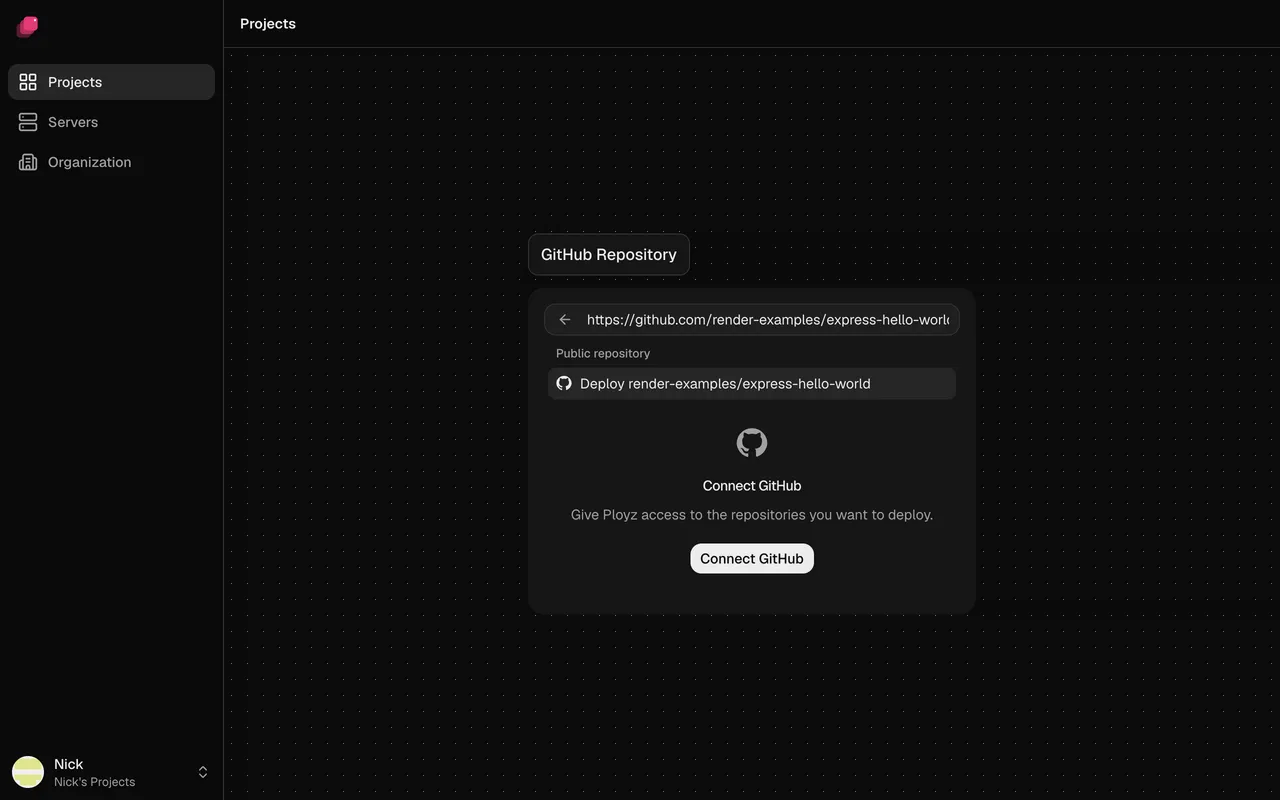
Ployz creates a project with a name like gentle-frog, and the app appears on its canvas as the
service express-hello-world. Nothing runs yet: your changes wait in the bottom bar until you
deploy.
Using your own app? Click Connect GitHub instead and install the Ployz app on your
repository, so every push deploys it; see Deploy from GitHub. Your app
must listen on the PORT variable, or you enter its port in the next step; see
Choose the port.
Give it an address
Section titled “Give it an address”- Click the
express-hello-worldcard, then Settings, then Generate Domain under Networking. - Leave Port blank. The example listens on
PORT. - Click Generate Domain.
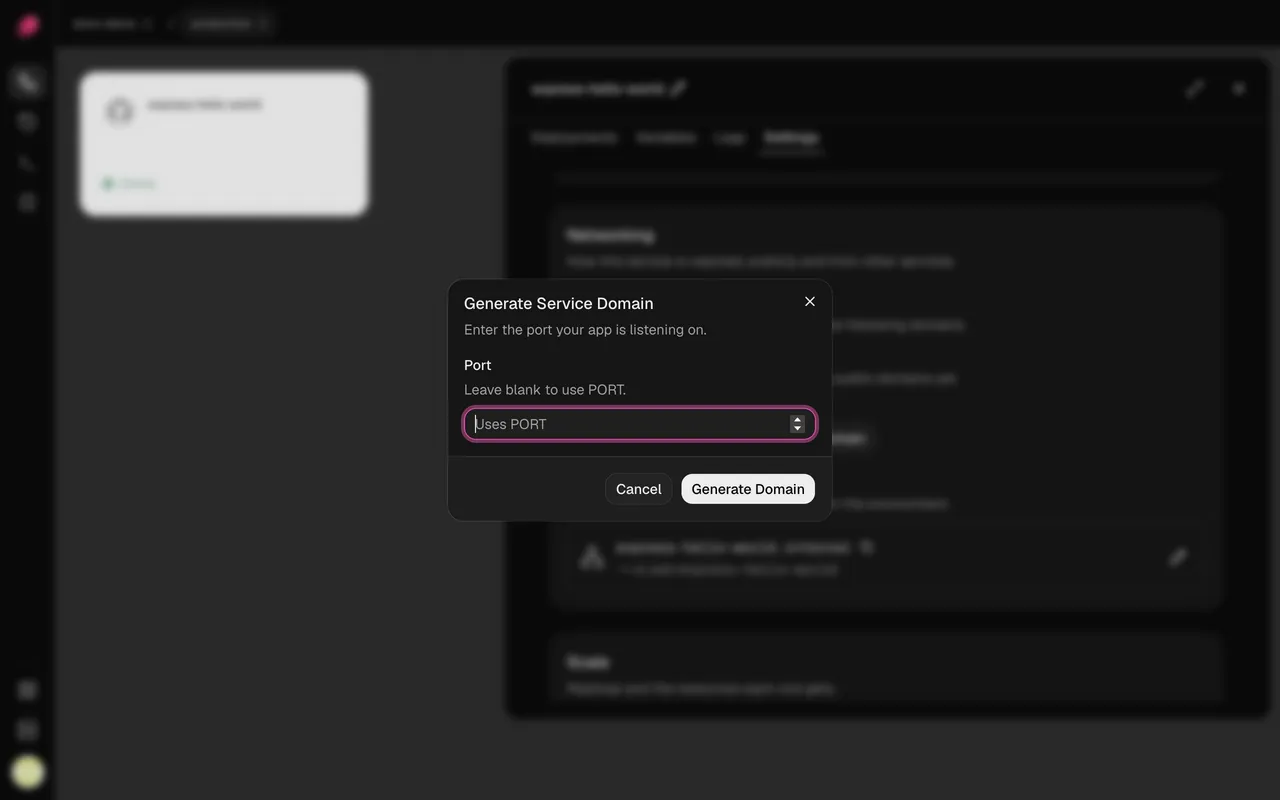
The address goes live on your first deploy.
Add a server
Section titled “Add a server”While you have no server, the bottom bar shows Add a server where Deploy would be.
- Click Add a server in the bottom bar.
- Not on Ubuntu? Click Start without it first; see Start without ZFS.
- Click Copy next to the command under Run this as root. It works for 24 hours.
- Connect to your server with
ssh [email protected](your server's IP), paste the command and press Enter.
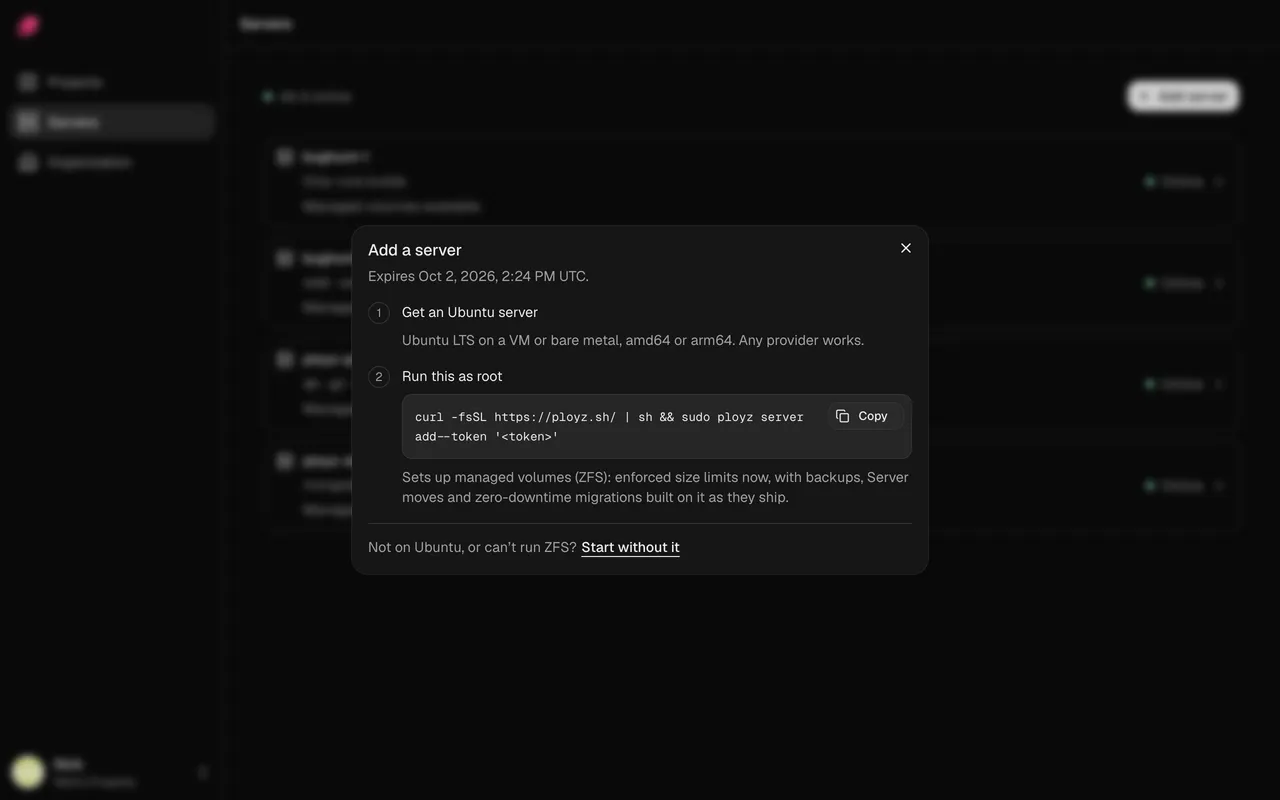
The command installs Ployz and adds the server to your organization. If your provider puts a firewall in front of it, open these ports.
Deploy
Section titled “Deploy”When the server joins, Deploy appears in the bottom bar, next to Apply 2 changes: the new service and its address.
- Click Deploy. The deployment page opens.
- Ployz builds the app, then starts it on your server. Click Build or Deploy to follow the logs.
- Wait for Deployed. The first build takes a minute or two.
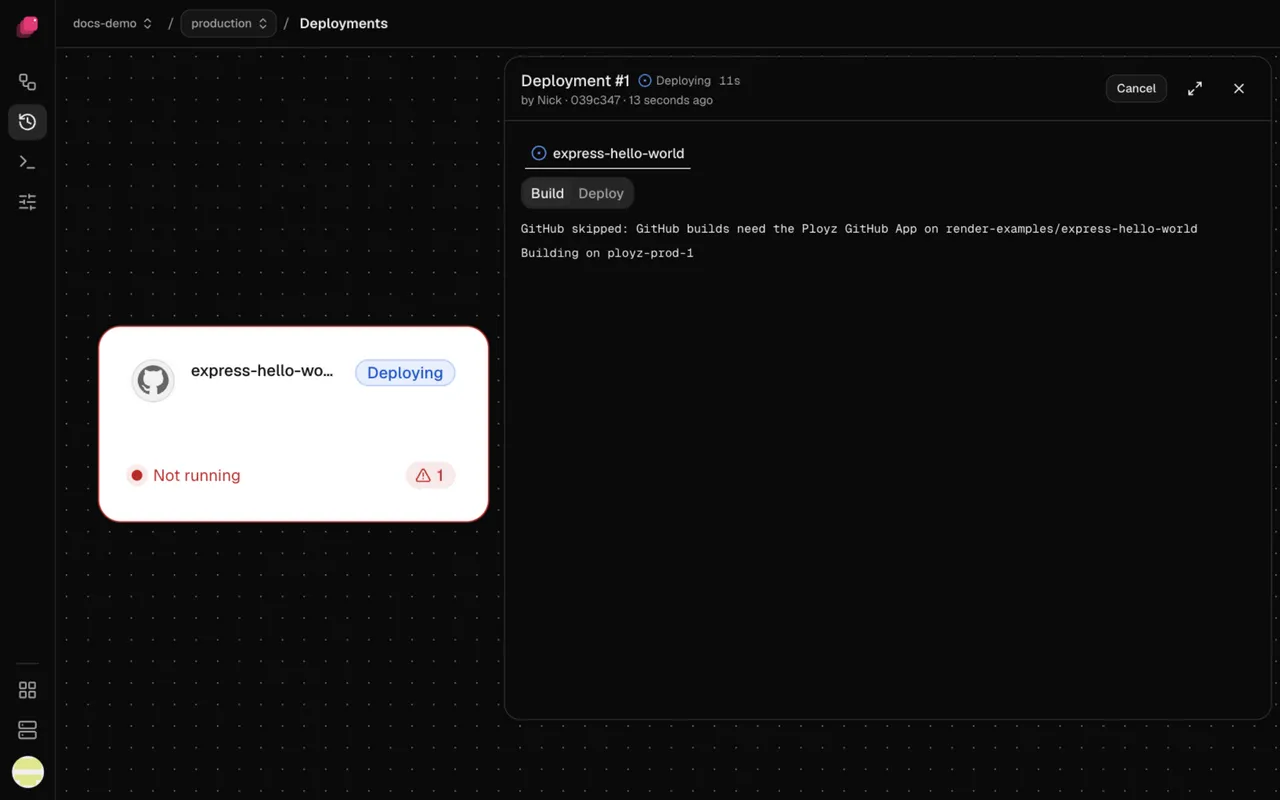
Until the first deploy finishes, the service's card can read Not running with a warning. That's expected. If the deployment fails, its page says why; see Troubleshooting deployments.
Open your app
Section titled “Open your app”The card turns Online and shows the address, like
express-hello-world.acme-x7q2.ployz.app. Open it from Settings → Networking.
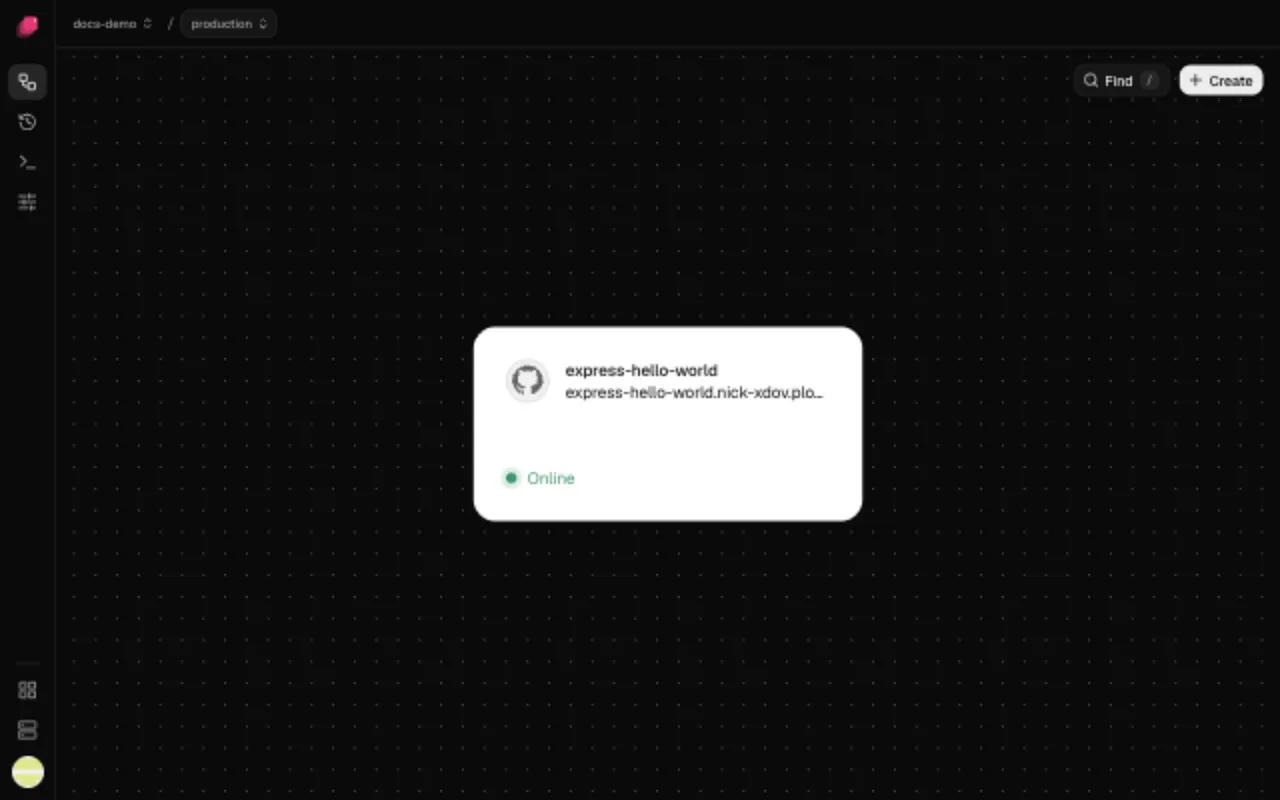
If the page doesn't load, see My app isn't reachable.
Next: deploy your own app from GitHub. Connecting GitHub also turns on deploy on push, and lets you turn on preview environments.