
Service settings
Open a service on the canvas, then click Settings. Your changes are staged until you deploy, except the few marked Takes effect at once.
Source
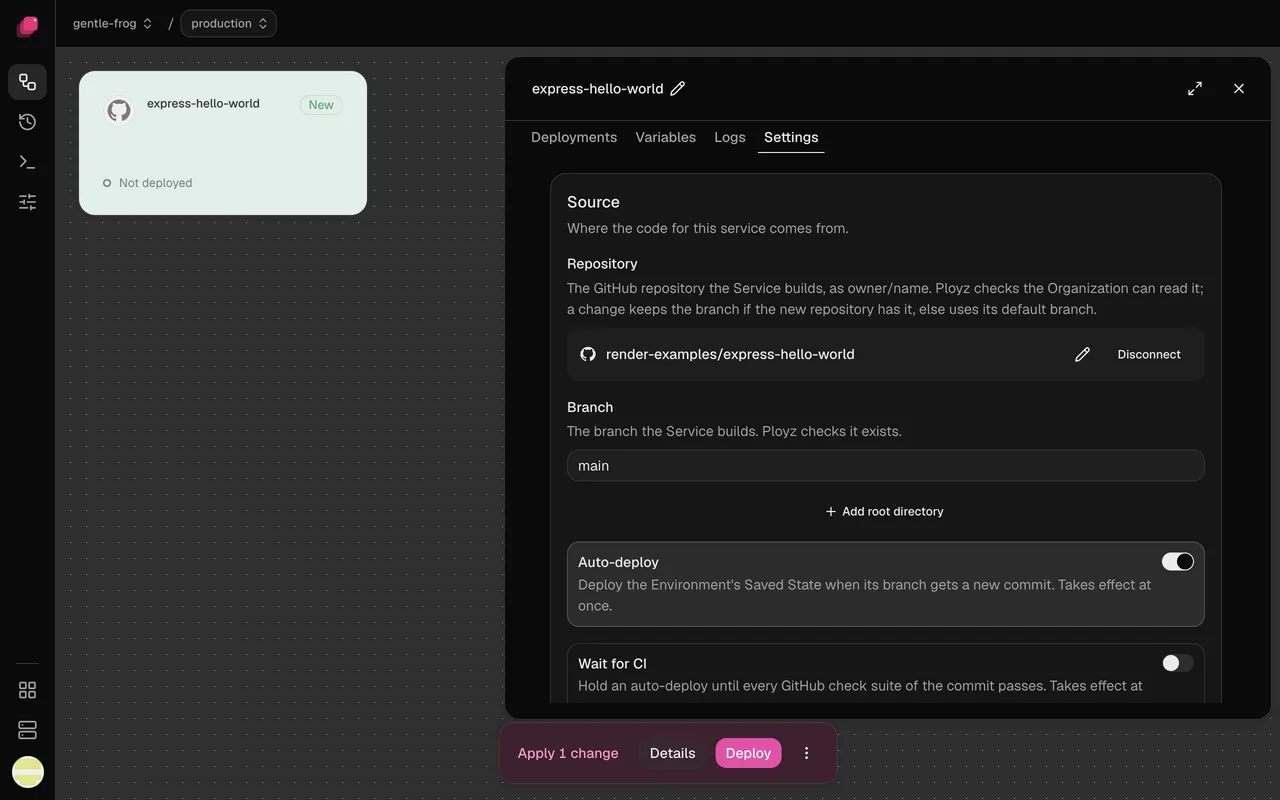
Section titled “Source”A repository service shows Repository through Watch paths, an image service shows
Container image and Registry credentials, and an empty service shows Add a source.
A service from ployz up shows only a note to run it again.
Repository
Section titled “Repository”Click the pencil to build another repository instead. The service keeps its Git branch if the new repository has one by that name, and otherwise takes that repository's default branch. Disconnect leaves the service with no source after your next deploy. See Deploy from GitHub.
Branch
Section titled “Branch”Starts as the repository's default Git branch. Each environment has its own, so production can
follow main while staging follows develop. See
Choose the Git branch.
Root directory
Section titled “Root directory”The repository root (/) until you click Add root directory and enter a folder, like
/apps/web. Set it to deploy one app from a monorepo: the build sees nothing outside that
folder. See Deploy a monorepo.
Auto-deploy
Section titled “Auto-deploy”On by default, though pushes deploy only once the Ployz GitHub App is on the repository. Turn it off to deploy only when you click Deploy. Takes effect at once, and Discard doesn't undo it. See Deploy on push.
Wait for CI
Section titled “Wait for CI”Off by default. Turn it on so a failing check stops a commit from deploying; if no checks run for a commit, it waits until your next push. Takes effect at once. See Wait for CI.
Watch paths
Section titled “Watch paths”Empty by default, so any push deploys. Add a pattern like apps/web/** to deploy only when a
push changes those files; patterns start at the repository root, whatever the root directory.
Takes effect at once. See
Deploy only when certain files change.
Container image
Section titled “Container image”Click the pencil to run another image or tag. Deploying the same tag again doesn't fetch a newer
copy, so give each release its own tag, like 1.5.0. See
Ship a new version of your image.
Registry credentials
Section titled “Registry credentials”Needed only for a private image: click Add credentials and fill in what your registry asks for. Adding or disconnecting credentials waits for your next deploy, but a new secret for credentials you already have takes effect at once, and Discard can't bring the old one back. See Use a private image.
Add a source
Section titled “Add a source”An Empty service has nothing to run, and deploying it fails until you choose Git repository or Container image here. See Add a service.
Networking
Section titled “Networking”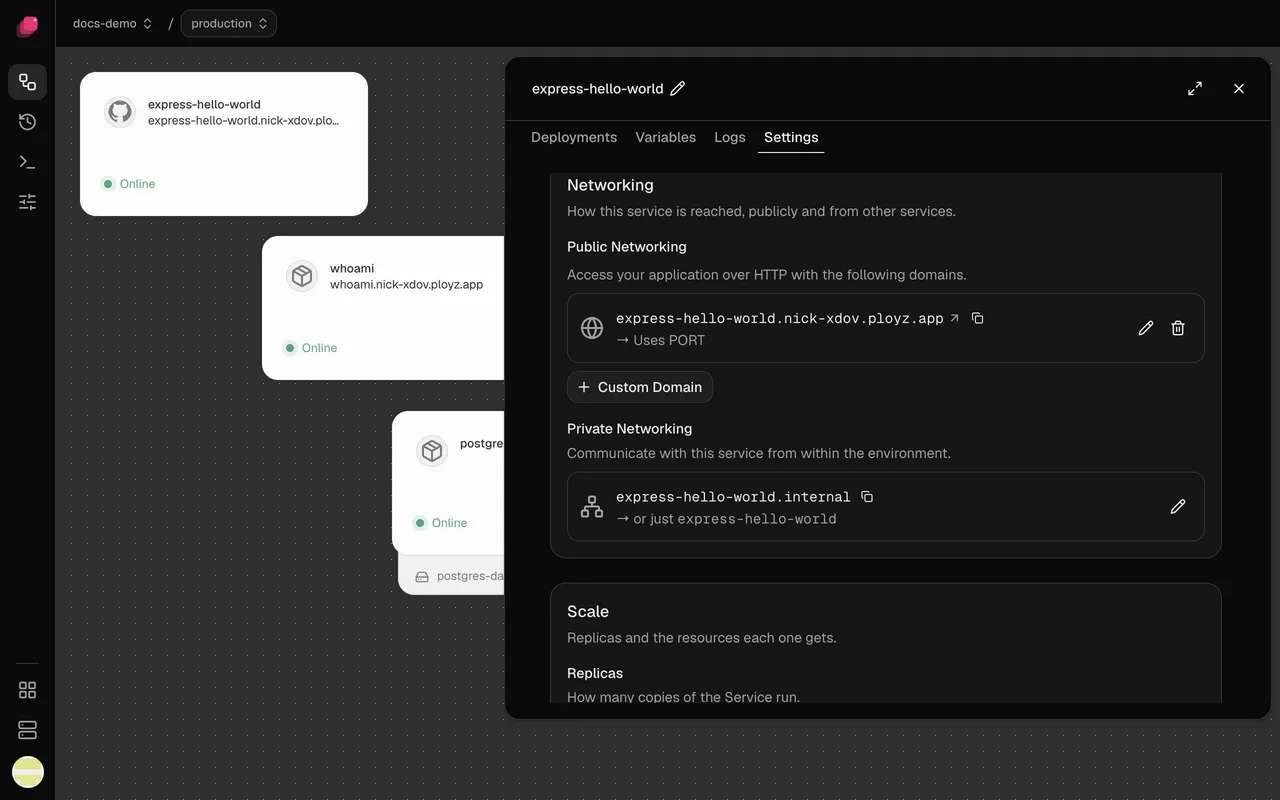
Public Networking
Section titled “Public Networking”A service you add in the dashboard has none until you click Generate Domain, which gives it
a free https address like web.acme-x7q2.ployz.app. Leave Port blank to send traffic to
PORT, 8080 unless you set it, or enter the port your app listens on. See
Generate a domain.
Custom Domain
Section titled “Custom Domain”Adds a domain you own, like app.example.com, next to the generated one, and a service can have
as many as you need. It needs Ployz Pro, $9 a month, or a self-hosted Ployz
Cloud, plus a DNS record at your DNS provider. See
Add a custom domain.
Private Networking
Section titled “Private Networking”Other services reach this one at NAME.internal, or just NAME, on any port. The name starts as
the service's name and stays when you rename the service; change it with the pencil, and update
services that typed the old name in the same deploy. See
Change a service's private name.
Replicas
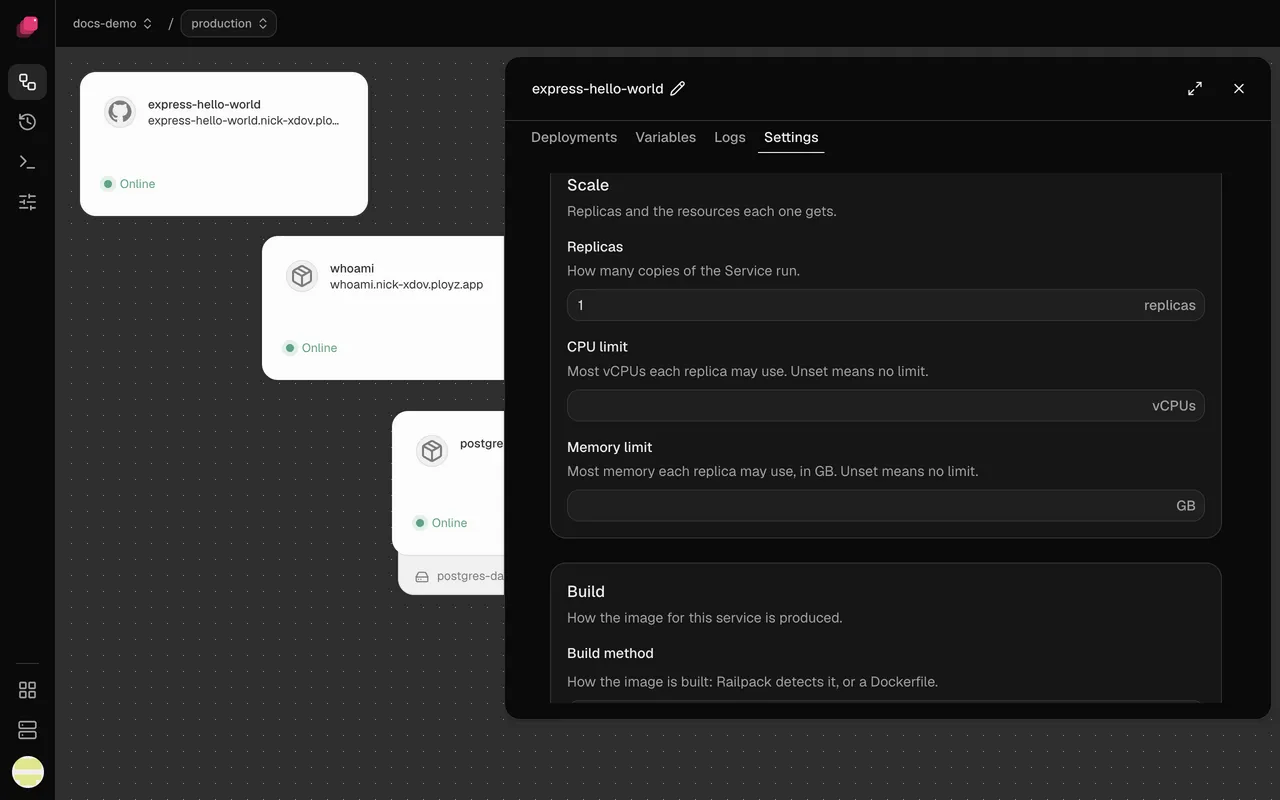
Section titled “Replicas”1 by default, up to 50. Ployz gives each server one replica before any server gets a second. A service with a volume runs one replica, and preview environments run one of each service. See Run more replicas.
CPU limit
Section titled “CPU limit”Empty by default, which means no limit. Set it in vCPUs, up to 64, to keep a busy service from slowing the others on its server. Ployz doesn't check that a server has room for it, so leave headroom. See Scaling and multiple servers.
Memory limit
Section titled “Memory limit”Empty by default, which means no limit. Set it in GB, up to 1024. A replica that goes over it is killed, and its Restart policy decides whether it comes back. See Scaling and multiple servers.
Only services built from a GitHub repository have this section.
Build method
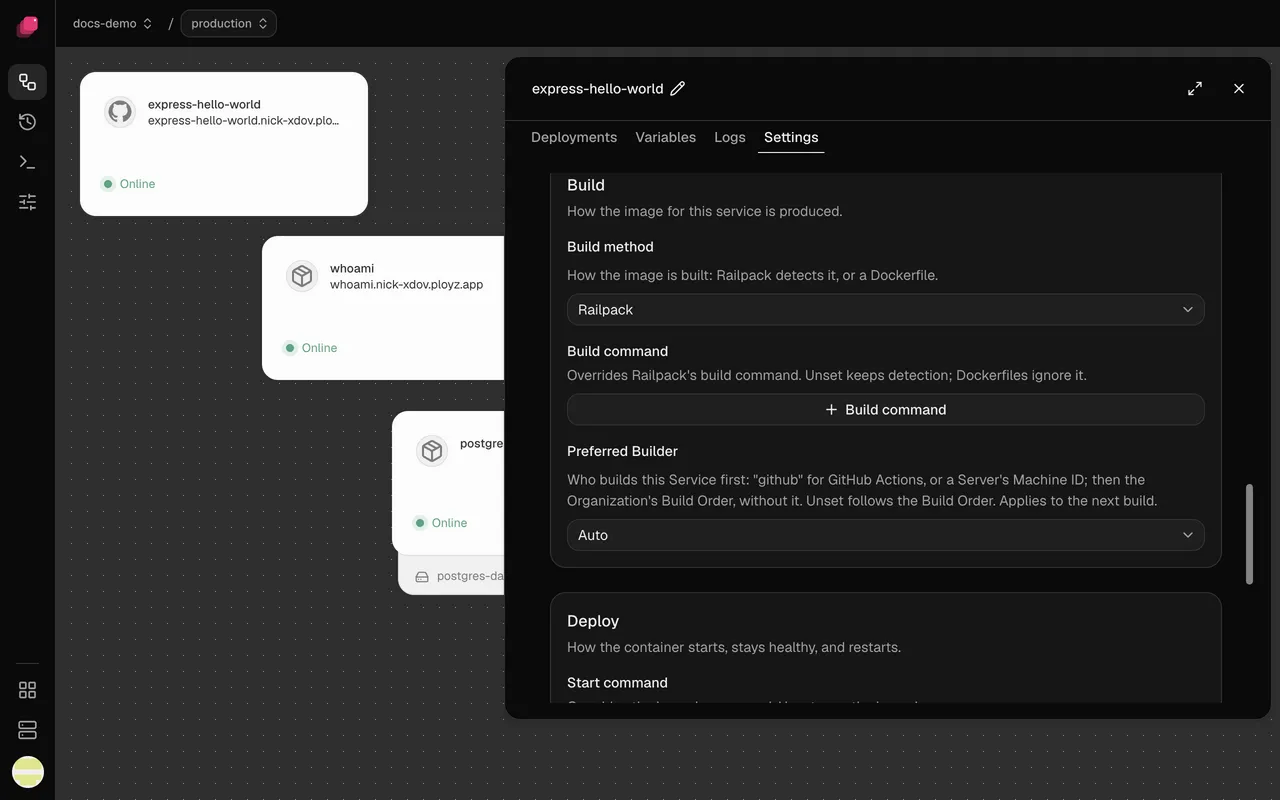
Section titled “Build method”Railpack by default, even when the repository has a Dockerfile. Choose Dockerfile when you already have one that works, or your app needs more than Railpack can work out. See Railpack and Dockerfiles.
Build command
Section titled “Build command”Shown with Railpack. Empty by default, so Railpack works out the build step; click Build
command and enter one, like pnpm run build, when it picks the wrong one. See
Change the build and start commands.
Dockerfile path
Section titled “Dockerfile path”Shown with Dockerfile. Empty means Dockerfile in the root directory. The
field suggests paths from the top of the repository, so with a root directory set, shorten them to
start from it. See
Build with a Dockerfile.
Preferred Builder
Section titled “Preferred Builder”Auto by default, which follows the build order under Organization → Builds. Pick GitHub Actions to keep a busy service's builds off your servers (its repository needs the Ployz build workflow, and GitHub receives the service's variables), or one of your servers to keep its builds on a server whose build cache is warm. The service tries that builder first. Takes effect at once, from the next build. See Prefer a builder for one service.
Deploy
Section titled “Deploy”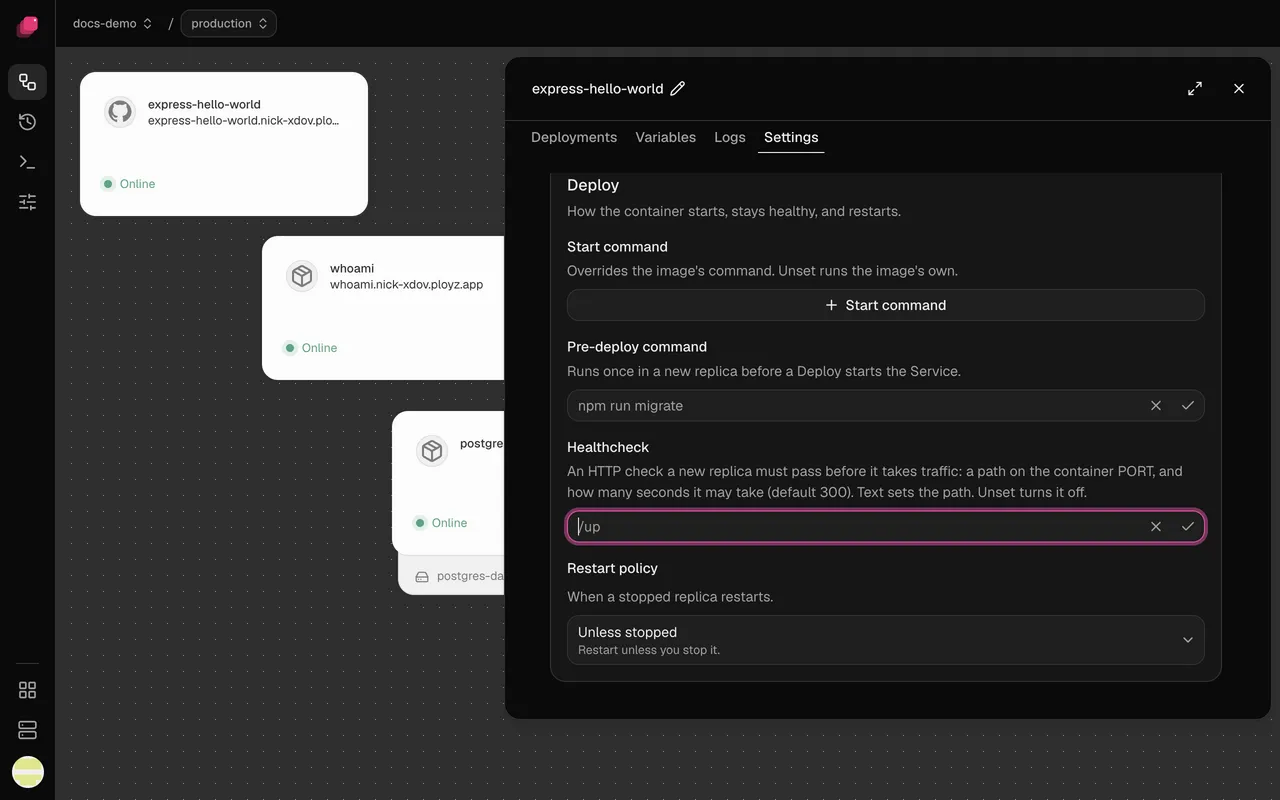
Start command
Section titled “Start command”Empty by default, so the service runs what the image or the build sets. Set one, like
npm run worker, to run something else from the same code; it runs in a shell, so $PORT works.
See Override the start command.
Pre-deploy command
Section titled “Pre-deploy command”Off until you click Pre-deploy command. Use it for migrations, like npm run migrate: if it
fails or runs past 5 minutes, the deploy fails and the old version keeps running, but Ployz
doesn't undo what it changed. See
Deploy without downtime.
Healthcheck
Section titled “Healthcheck”Off by default, so an old replica stops a few seconds after the new one starts, ready or not.
Click Healthcheck path and enter a path like /up that answers with a 2xx status on PORT; a
redirect fails the check. See
Deploy without downtime.
Healthcheck timeout
Section titled “Healthcheck timeout”Shown once you set a healthcheck path. 300 seconds by default, which is also the most. A replica that doesn't pass in time is stopped, and the old version keeps serving. See My new version never becomes healthy.
Restart policy
Section titled “Restart policy”Unless stopped by default, which brings a stopped replica back unless you stopped it. Choose On failure to restart only after an error, so a task that finishes stays stopped, or Never to leave it down. Always restarts it whenever it stops. See My service shows Crashed or Stopped.
Max retries
Section titled “Max retries”Shown with On failure. 10 by default, from 0 to 100; after that many restarts, the replica stays stopped.
Danger
Section titled “Danger”Delete service
Section titled “Delete service”The service keeps running until your next deploy, and discarding the change brings it back. A database's service takes its volume and data with it, unless another service mounts the volume, and the deploy asks you to confirm. See Confirm a deploy that deletes data.