
Manage servers
The Servers page lists every server in your organization. Open one to see what runs on it, turn builds on or off, or remove it.
Check your servers
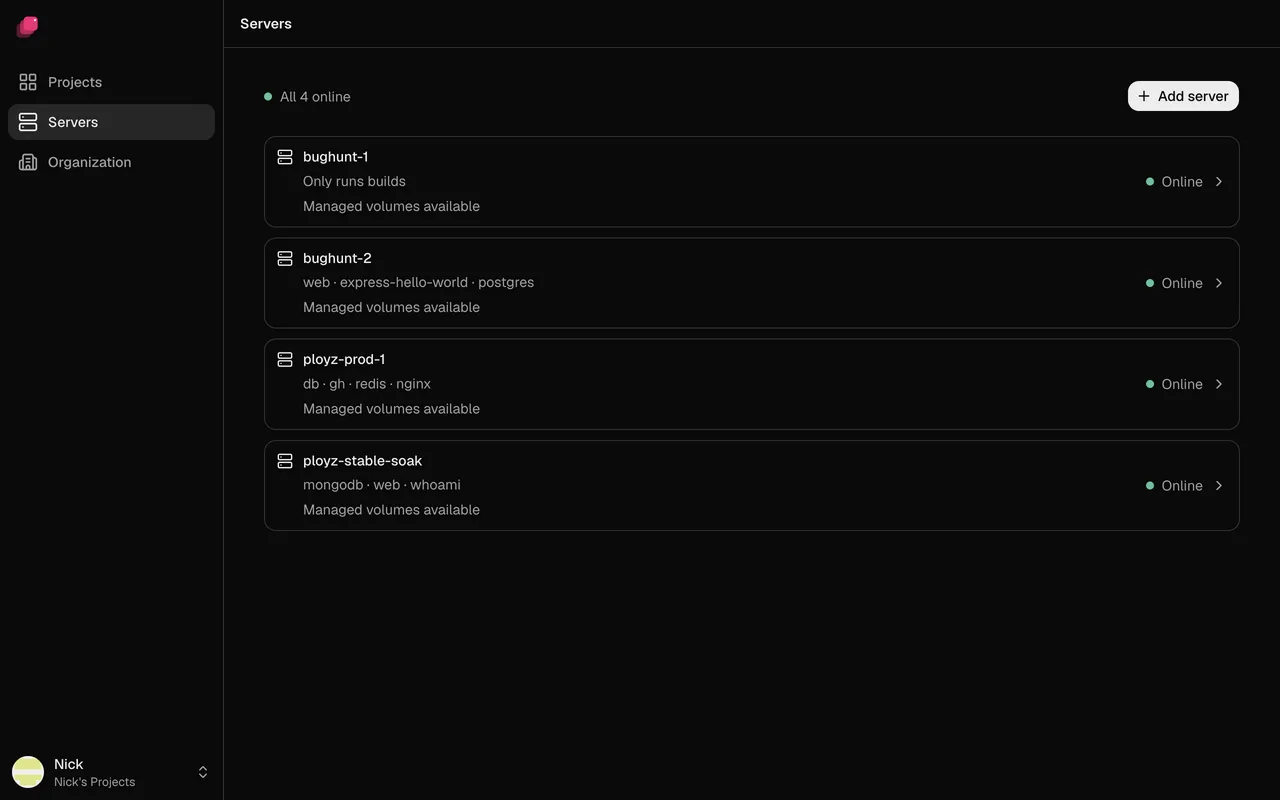
Section titled “Check your servers”Each row shows a server's name, the services on it, what it can store, and its status. Above the list, a summary reads All 3 online, or puts problems first, like 1 offline · 2 online.
| Status | What it means |
|---|---|
| Online | The server is up and in touch with your other servers. |
| Building | Online, and running builds right now. |
| Offline | Your other servers can't reach it. See A server shows Offline. |
| Unknown | Ployz can't tell whether it's up. Check it as you would an offline one. |
Managed volumes available means the server can hold managed volumes. Docker only means it was added with Start without it and holds plain Docker volumes only.
If the page shows Can't reach your servers right now, see Troubleshooting servers.
See what runs on a server
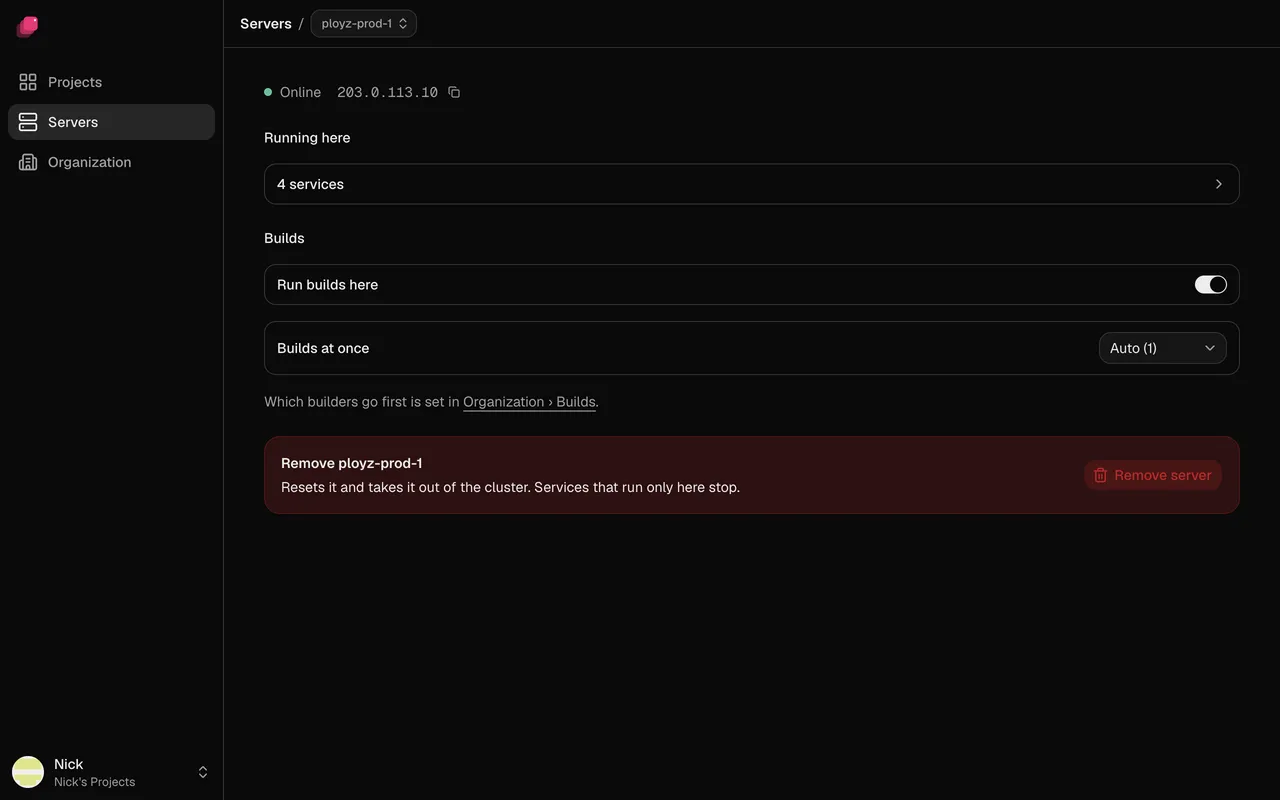
Section titled “See what runs on a server”Click a server. Its page shows its status and public IP address, then:
- Running here: click it to list the server's services. While the server is offline, each one says whether it's Still on another server or Down.
- Builds: Run builds here and Builds at once. See Where builds run.
An entry marked Not in any Project is left over from a deleted project or environment. Remove deletes its containers and its volumes, data included, from every server.
Change what a server does
Section titled “Change what a server does”Every server runs builds, runs services and takes web traffic. To turn one off, see Give servers different jobs: services move off on your next deploy. Web traffic is the exception: the server stops taking traffic at once, and your generated addresses stop pointing at it within the hour.
Upgrade Ployz on a server
Section titled “Upgrade Ployz on a server”Servers don't upgrade themselves, and the dashboard can't upgrade them yet. This is CLI-only for now:
# stable, beta, or an exact version like 0.2.0, on web-1 then web-2
ployz server upgrade stable web-1 web-2
Your apps keep running. Ployz stops at the first server that fails.
Remove a server
Section titled “Remove a server”- Open the server and click Remove server.
- Ployz lists the volumes on the server. Type the server's name and click Remove.
Services that ran only on that server stop. Your next deploy replaces its replicas on your other servers, except for services whose volume was on it (see When a server goes down). Removing your last server stops everything; your projects and settings stay, and the bottom bar shows Add a server until you add one.
If the server is unreachable, remove it without resetting it. This is CLI-only for now:
ployz server rm web-2 --no-reset --confirm web-2Ployz stays installed on a removed server, so you can add it again later. To remove Ployz itself,
run sudo ployz-uninstall on the server after you remove it. Docker, your images and your volume
data stay on the disk.
Forget servers you deleted
Section titled “Forget servers you deleted”If you deleted all your servers at your provider, forget them:
- Go to Organization and, under Danger, click Forget Servers. When the Servers page can't reach your servers, Forget them and start over. opens the same dialog.
- Ployz lists the servers and their volumes. Type your organization's slug and click Forget Servers.
Ployz refuses while any server answers. Your projects, settings and deployment history stay, but volume data on the forgotten servers can't be recovered. When you add a server again, Ployz deploys your environments to it.